Configure workspace SSO
You will learn how to connect an OIDC identity provider to a workspace, test discovery, control just-in-time membership, and understand how SSO users get project access.
Only workspace owners and admins can configure SSO. End-user account behavior (no local password or email MFA for SSO users) is covered in Accounts and security.
1. Open SSO settings
- Open your workspace.
- Choose Settings > SSO (OIDC) under Security & data.
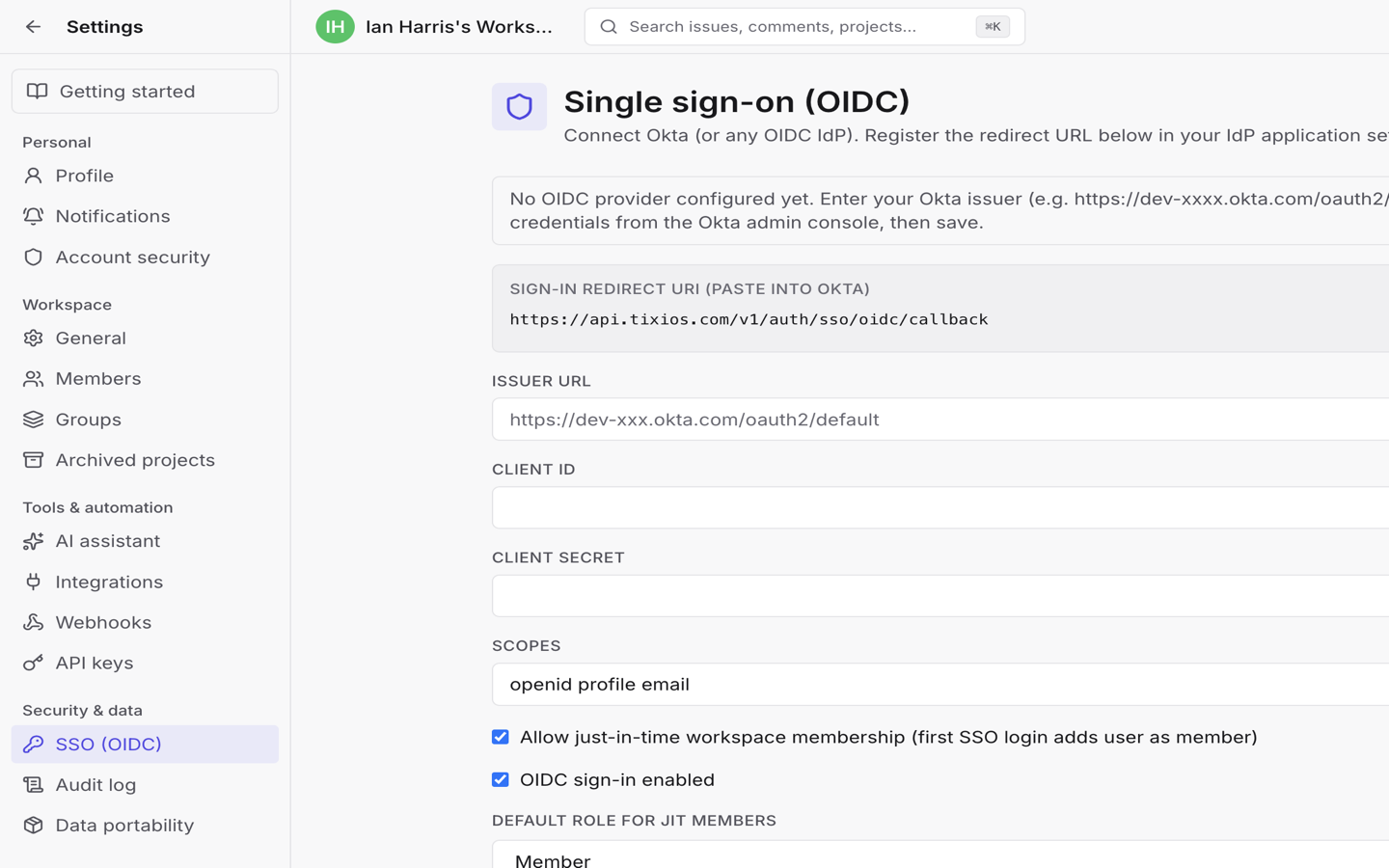
If you are not an owner or admin, Tixio shows that only owners and admins can configure SSO.
2. Register the redirect URI in your IdP
On the SSO page, copy Sign-in redirect URI and paste it into your identity provider application settings.
Tixio works with standards-compliant OIDC providers. Teams commonly use Okta, Google Workspace (as an OIDC/OAuth app), or Microsoft Entra ID (Azure AD). The product UI is a generic OIDC form (examples often use Okta issuer URLs).
3. Enter provider credentials
Fill in:
| Field | Purpose |
|---|---|
| Issuer URL | Your IdP issuer (for example an Okta /oauth2/default URL) |
| Client ID | Application client ID from the IdP |
| Client secret | Application secret (leave blank later to keep an existing secret) |
| Scopes | Default openid profile email |
Then set:
- Allow just-in-time workspace membership — first successful SSO login can add the user as a workspace member (default on).
- Default role for JIT members — Member or Admin.
- Allowed email domains — optional comma-separated list; empty means any domain.
- OIDC sign-in enabled — master switch for SSO on this workspace.
Choose Save, then Test discovery. Success shows Discovery OK.
To remove the configuration later, choose Remove OIDC and confirm.
4. How members sign in with SSO
On the login page, under Workspace SSO:
- Enter the Workspace ID (the UUID from the app path
/w/<uuid>/…, not a user profile id). - Choose Continue with SSO.
This is separate from Continue with Google, which is personal Google sign-in, not workspace OIDC.
Common errors include cancelled sign-in at the IdP, missing or unverified email, email domain not allowed, an existing local account with the same email (SSO will not take over that account), JIT disabled for non-members, or OIDC disabled for the workspace. See Sign up, sign in and sessions.
5. How SSO users get project access
SSO controls workspace membership first:
| Situation | Result |
|---|---|
| Already a workspace member | Sign-in succeeds |
| Not a member, JIT enabled | Added with the default JIT role |
| Not a member, JIT disabled | Sign-in rejected until invited |
After membership, project access follows the normal model:
- Workspace owners and admins have admin access across projects.
- Workspace members can access Team visibility projects automatically.
- Private projects still need an explicit project membership or group grant.
SSO does not by itself place users on every private project. Invite people or add them to projects and groups as you would for any other member.
Limits to expect
- One OIDC provider per workspace.
- Existing Tixio accounts with the same email are not auto-linked into SSO — users keep their original sign-in method.
- IdP endpoints must be reachable over HTTPS.
- Successful SSO logins are recorded in the audit log.
Next
- Browse and export the audit log to confirm SSO login events.
- Manage members and access to place people on private projects.
- Export and import workspace data if you are migrating admin configuration between environments.