Use issue detail and collaboration
You will learn how to use the issue detail page for context, discussion, attachments, relationships, history, and collaborative editing.
Open an issue by selecting its key, title, row, board card, notification, search result, or issue-key link.
Navigate the issue detail page
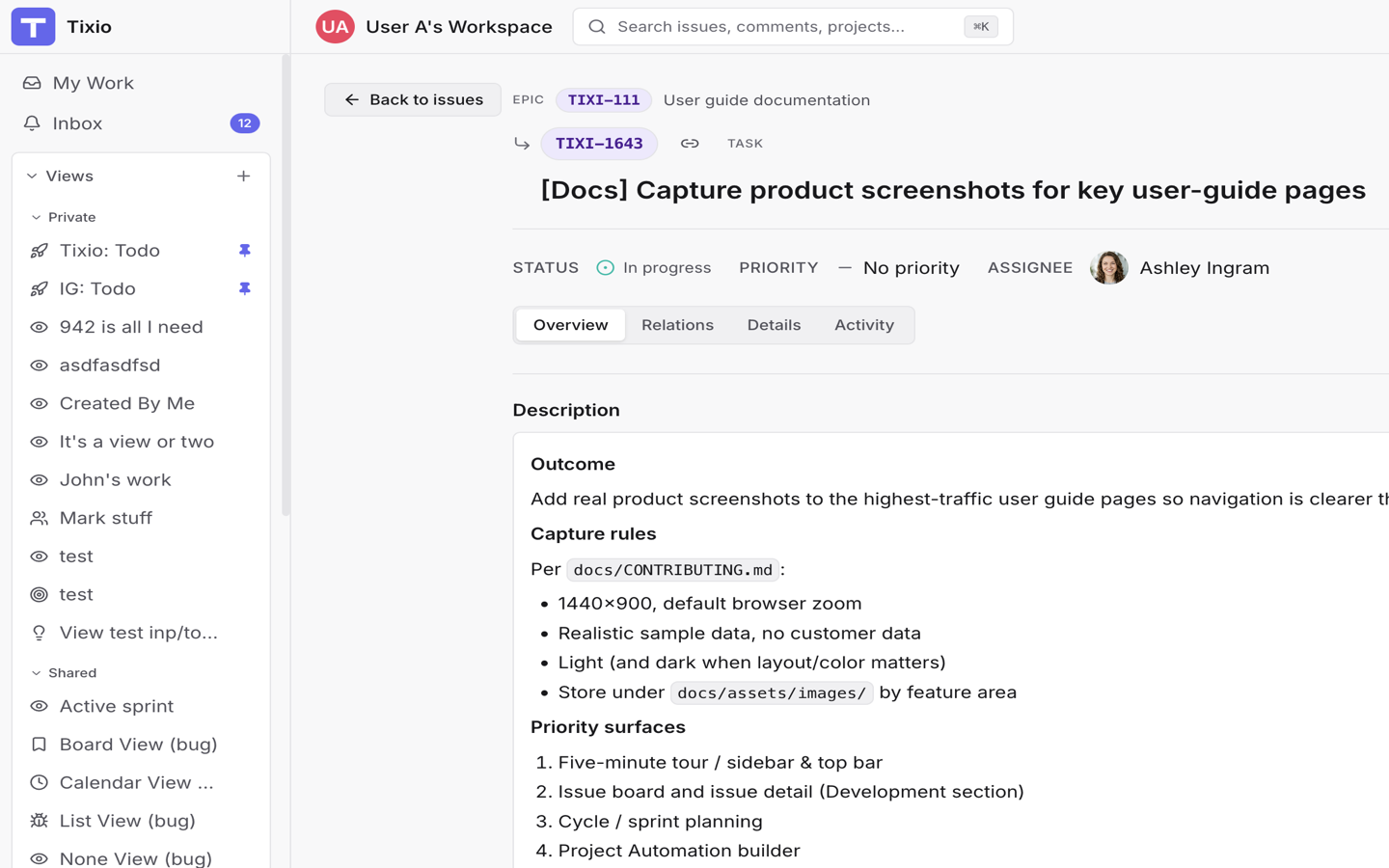
Issue detail has four tabs:
- Overview for description, comments, attachments, and the main discussion.
- Relations for issue links, parent/subtask structure, epic membership, and connected work.
- Details for metadata and historical planning context.
- Activity for timeline events and revision history.
The side panel and header expose common fields such as status, priority, assignee, type, labels, due date, estimate, cycle, epic, milestone, versions, creator, and watchers.
Edit the description collaboratively
Click the description to edit it. Tixio supports collaborative descriptions, so other viewers can see edits live and may appear with multi-cursor presence.
Use the description for durable context:
- Acceptance criteria.
- Reproduction steps.
- Decisions.
- Design links.
- Work notes that are too important to leave only in chat.
Descriptions support Markdown, @ mentions, issue-key links such as TIXI-123,
pasted images, and drag-and-drop file uploads where available.
Comment with context
Use comments for updates, questions, decisions, and handoffs. Mention teammates
with @ when they need attention.
Comment bodies support collaborative editing, Markdown, issue-key links, pasted images, and attachments. Tixio can preserve line breaks and blank lines so structured notes remain readable.
When posting a comment, use the watch option if you want to keep receiving updates for the issue.
Watch issues
Watching an issue subscribes you to updates. The issue creator is watched by default, and comment authors can choose to watch from the composer.
Watch issues that you own, depend on, are blocked by, or need to follow closely. Stop watching when updates no longer need your attention.
For how watches, mentions, comments, and status changes notify people, read Notifications.
Add attachments
Use Attachments on the issue detail page to upload supporting files. You can drop files, paste files, or browse.
Tixio accepts common image, video, document, text, CSV, JSON, ZIP, and Office document files. Files can be up to 25 MB each.
Image and video attachments can preview inline. Open image previews when you need to inspect details without leaving the issue.
Good attachment uses:
- Screenshots of bugs.
- Short screen recordings.
- Logs or JSON payloads.
- Customer-provided examples.
- CSVs or documents relevant to the work.
Link related issues
Use Relations or the relationship section to connect issues. Tixio supports relationship types such as:
- Blocks.
- Blocked by.
- Depends on.
- Depended on by.
- Causes.
- Caused by.
- Duplicates.
- Duplicated by.
- Relates to.
- Parent and Sub-tasks.
Choose the relationship that helps the next reader understand the dependency. Use Relates to only when a more specific relationship does not apply.
Use parent issues and subtasks
Use subtasks when a single issue needs smaller tracked pieces. Parent/subtask relationships are useful when all work belongs inside the same project and the child issues should stay visibly attached to the parent.
Use an epic instead when the work is a larger outcome, spans projects, or needs rollup progress.
Review activity and revisions
Use Activity to understand what changed, who changed it, and when. Activity can show comments, field changes, link changes, attachment changes, and other issue events.
Use revision history when you need to inspect or restore previous description content. This is especially useful for collaborative descriptions where several people may edit over time.
Use issue-key links
Typing an issue key such as TIXI-123 in a comment or description creates a
link. Use issue-key links for lightweight references when a formal relationship
is not needed.
Use explicit issue relationships when the relationship should appear in the Relations tab and affect how people reason about blockers, dependencies, or duplicates.
Ask for a summary
Use Ask AI when you need a quick summary of a busy issue, related work, or recent comments. Include the issue key in your prompt if you are not already on the issue page.
For assistant usage, read Chat with the AI assistant.
Keep issue collaboration healthy
Use this routine for busy issues:
- Keep the description as the current source of truth.
- Use comments for discussion and decisions.
- Mention only people who need to act or know.
- Add screenshots, recordings, and logs as attachments.
- Link blockers and duplicates explicitly.
- Watch the issue while you are involved; unwatch when you are not.
Next
Continue to Use issue views and backlog.