Export and import workspace data
You will learn how to export a workspace or project archive, download it while it is valid, and restore from a portability bundle with dry-run preview and user reconciliation.
Only workspace owners and admins can export or import archives. CSV issue import for a single project is documented separately in Import issues from CSV.
1. Open Data portability
- Open your workspace.
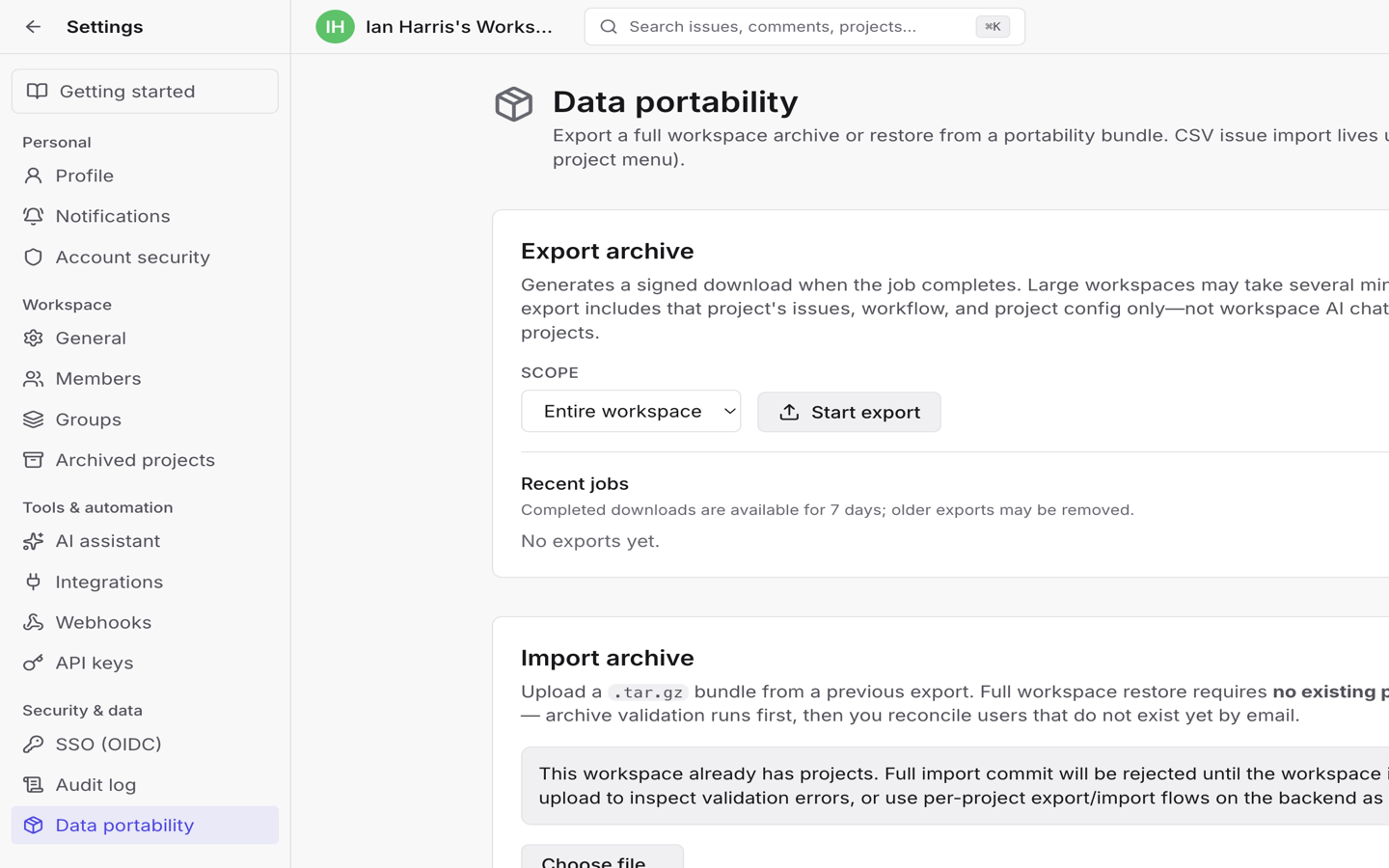
- Choose Settings > Data portability under Security & data.
2. Export an archive
Under Export archive:
- Choose Scope: Entire workspace or Single project.
- If you chose a single project, select that project.
- Choose Start export.
Tixio queues a background job. Large workspaces can take several minutes. When the job completes, use Download from Recent jobs.
Completed downloads stay available for 7 days, then expire. Job lines show
relative time, size, and expiry (Expires in N days, Expires today, or
Expired).
What each scope includes
| Scope | Includes (high level) | Does not include |
|---|---|---|
| Entire workspace | Projects, issues, comments, views, members, audit events, OIDC config, webhooks, automations, AI conversations, and related workspace data | Operational/derived tables not part of the portability manifest |
| Single project | That project's issues, workflow, and project config | Other projects, workspace AI chat, audit log, and workspace-wide governance |
A single-project export is useful for moving one stream of work without pulling the whole workspace.
3. Import an archive
Under Import archive:
- Choose a
.tar.gz/.tgzbundle from a previous export (max upload size is enforced by the server; large archives may be rejected). - Optionally choose a Target project for a scoped import, or leave None — workspace-level import.
- Choose Upload & validate.
Full workspace restore requires no existing projects in the target workspace. If projects already exist, you can still upload to inspect validation errors, but commit will be rejected until the workspace is empty (or you use a scoped/target-project flow where applicable).
Resolve users
When the job reaches Resolve users by email, map each exported user to:
- Stub (new ID), or
- Map to member and pick an existing workspace member.
Users already present by email may be auto-mapped. Import does not recreate credentials or silently enroll people who are not already in the target workspace beyond the stub/map choices you make.
Dry-run preview and commit
Under Commit preview:
- Review Ready / Not ready, blocking errors, attachment blob counts, and rows to insert.
- Choose Update preview after changing mappings so the server re-runs the dry-run.
- When ready, choose Save reconciliation & commit import.
Commit cannot be undone. You can Cancel an import job or Start another import after completion.
What import strips for safety
On commit, Tixio discards credentials and secrets. Expect API keys, OIDC provider secrets, webhook secrets, MFA material, and sessions to be blocked or stripped. User rows keep identity fields such as email and name, not password hashes. Plan to reconnect integrations and recreate keys after a restore.
4. Prefer the right migration path
| Goal | Use |
|---|---|
| Full Jira Cloud project with comments, links, epics | Import from Jira Cloud |
| Spreadsheet of issues into one project | Import issues from CSV |
| Move or back up Tixio workspace data | This page |
Next
- Import issues from CSV for lightweight issue loads.
- Configure workspace SSO to reconnect SSO after a restore.
- Browse and export the audit log for compliance extracts without a full archive.