Five-minute tour
You will learn the main navigation surfaces in Tixio so you can move around without guessing.
Open a workspace before you start this tour. If you have not set one up yet, finish Set up your workspace first.
1. Start from the workspace dashboard
The workspace dashboard shows the current workspace and its projects. Use it when you want to choose a project or create a new one.
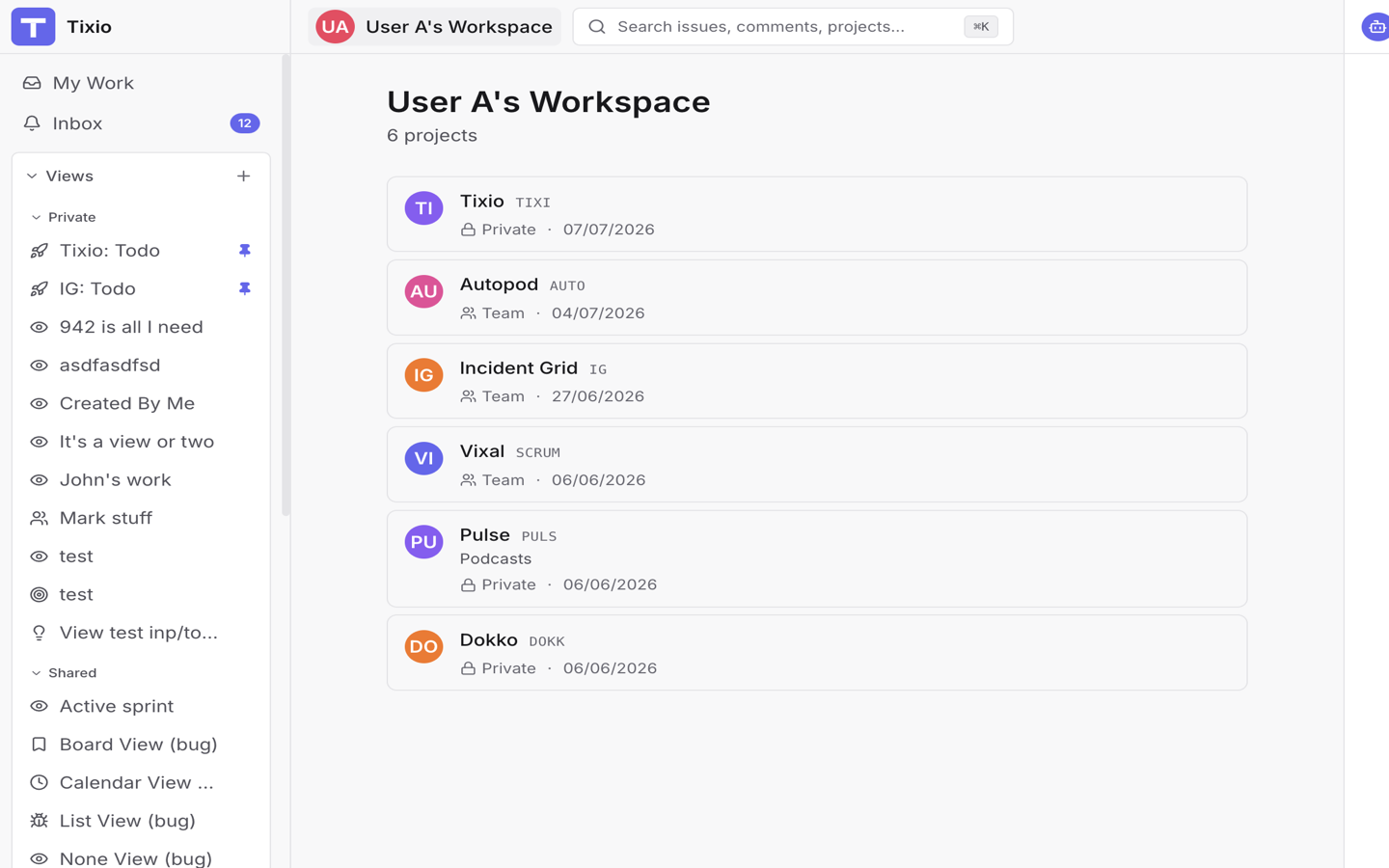
Project cards show the project name, optional description, visibility, and recent update time. Select a project card to open that project.
If the workspace has no projects yet and your role can create one, use New project.
2. Use the sidebar
The sidebar is the fastest way to move around the workspace.
At the top, use the workspace switcher to change workspaces. Next to it, use the collapse control to switch between the full sidebar and the compact icon-only sidebar. The sidebar remembers your preference.
Common sidebar areas include:
- Inbox for notifications and items that need attention.
- Projects for project shortcuts. You can pin projects and collapse the section.
- Views for saved issue searches. Private and shared views can appear in separate groups.
- Settings for workspace-level areas such as General, Members, Integrations, Webhooks, Audit log, Data portability, AI assistant, Notifications, and API keys. Some settings only appear when your role can use them.
- Your profile and log out control near the bottom.
If the sidebar feels too wide or too narrow, resize it or collapse it. Tixio remembers the width across sessions.
3. Use the top bar
The top bar gives you global controls:
- Search issues, comments, projects... opens the command palette. Use
Cmd+Kon macOS orCtrl+Kon Windows/Linux. - The notification bell opens recent notifications.
- The theme button cycles through system, dark, and light appearance.
- Ask AI opens the AI assistant. Use
Cmd+Jon macOS orCtrl+Jon Windows/Linux.
Use search when you know roughly what you want. Use the sidebar when you know where the work lives.
For deeper search guidance, read Find work with search and filters.
4. Learn a project
Inside a project, the project navigation row organizes project-level work:
- Issues is the main issue surface. It can open as list, table, board, calendar, or timeline depending on the view.
- Cycles is for sprint planning and sprint reports.
- Versions tracks releases and versioned work.
- Backlog holds work that has not been pulled into active planning.
- Insights shows analytics such as burndown, burnup, velocity, cycle time, and workload when available.
- Dashboards collects widgets and rollups.
- Members manages project access.
- The overflow menu contains project Settings, CSV import, Statuses, and Automation.
For your first session, open Issues and Backlog. Those two surfaces are usually enough to create, triage, and prioritize the first work items.
For deeper guidance, read Create and manage issues and Use issue views and backlog.
5. Open keyboard shortcuts
Press ? outside a text field to open the keyboard shortcut overlay. Press
Escape to close it.
Shortcuts are context-aware, so the list can change depending on the screen you are using. If the overlay says no shortcuts are available, move to a project or another workspace screen and try again.
Useful shortcuts to learn first:
Cmd+KorCtrl+Kopens search.Cmd+JorCtrl+Jtoggles the AI assistant.Cmd+BorCtrl+Bcollapses or expands the sidebar when available.?opens keyboard shortcuts.Escapecloses overlays and dialogs.
For the full shortcut reference, read Keyboard shortcuts.
6. Understand notifications
The notification bell shows recent activity that may need your attention. You may see notifications for issue changes, comments, mentions, due dates, invites, GitHub activity, Slack delivery, or other workspace events depending on your settings and integrations.
Use notification settings when the signal is too noisy. A healthy setup sends notifications for work you own, work you watch, direct mentions, and important integrations without flooding you about every change.
For deeper guidance, read Review and manage notifications and Tune notification settings.
7. Ask AI carefully
The AI assistant can help summarize work, answer workspace questions, and start actions when your workspace and permissions support them. Treat it as a teammate with access to Tixio context, not as the source of truth for decisions.
Good first prompts:
What issues are assigned to me this week?
Summarize open launch blockers in the Product project.
Which backlog issues look ready for the next cycle?
Review proposed changes before accepting them, especially status changes, assignee changes, and bulk edits.
For deeper guidance, read AI assistant and chat, Chat with the AI assistant, and AI assistant capabilities.
8. Know where to go next
After the tour:
- Read Concepts when you want clearer definitions.
- Read Workflows when you want a repeatable team process.
- Read Use dashboards and insights when you want project health, sprint charts, workload, triage, or a standing status dashboard.
- Read Reference when you need shortcuts, search terms, Markdown, mentions, notifications, or glossary entries.
Next
Create or triage your first real issue, then use Workflows to decide how your team should capture, plan, and review work.