Plan and run a sprint
You will learn how to create a cycle, choose scope, start the cycle, and manage work while it is active.
Tixio calls the planning window a cycle; many teams treat it as a sprint. Use Cycles in the project navigation for the UI actions in this workflow.
Before you begin, read Cycles and sprint planning.
1. Open cycles
- Open the project.
- Select Cycles from the project navigation.
- Review existing cycles under Active, Upcoming, and Closed.
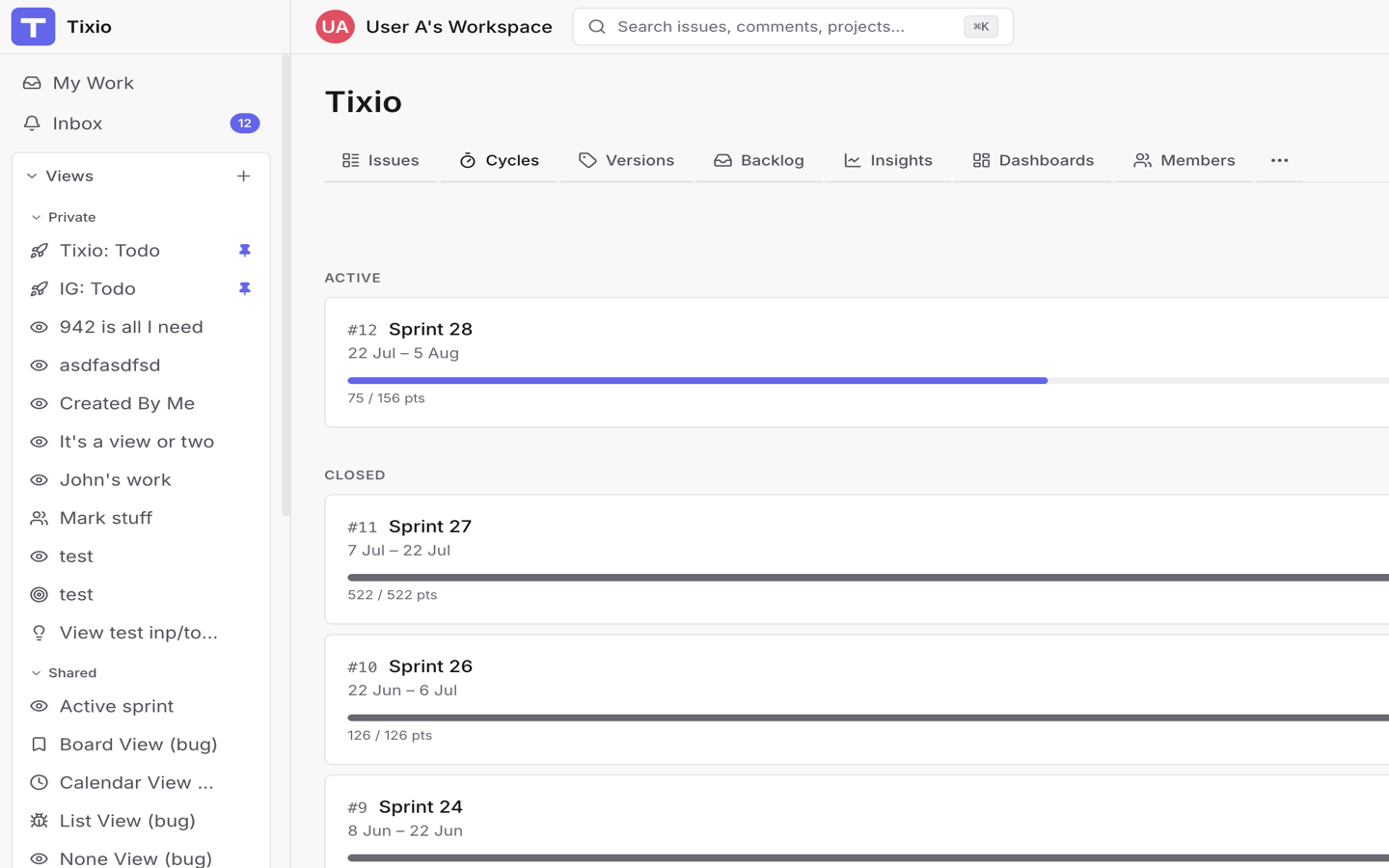
If there is already an active cycle, use it as the current sprint. Most teams should have only one active cycle per project.
2. Create a planned cycle
- Select New cycle.
- Enter a Name, such as
Sprint 7. - Add an optional Description with the sprint goal or planning notes.
- Set Starts and Ends.
- Choose whether the cycle should Auto-close after its end date.
- Choose the default carry-over policy Tixio should use when the cycle closes.
- Select Create cycle.
New cycles appear under Upcoming until they are started.
3. Edit the planned cycle
Before starting, open the cycle and select Edit if the plan changes.
You can update:
- Name.
- Description.
- Starts.
- Ends.
- Auto-close.
- Default carry-over policy.
Dates cannot be changed after the sprint starts, so confirm the date window during planning.
4. Choose sprint scope
Add issues to the cycle from the places where you already plan work:
- The issue create or edit form.
- Table or bulk-edit workflows.
- Saved views and filtered issue lists.
- Automation or AI flows that move issues into a cycle.
Use the Cycle filter to find:
- Issues with No cycle that are still in the backlog.
- Issues already assigned to the current cycle.
- Issues in past cycles that may need follow-up.
5. Prepare issues before start
Before starting the sprint, check that planned issues have enough detail:
- Clear title and description.
- Type and priority.
- Owner or responsible assignee.
- Estimate when your team plans by points.
- Relevant labels, epic, milestone, or versions.
- Status that reflects current readiness.
For planning-field guidance, read Epics, initiatives, milestones and versions.
The sprint report depends on the start snapshot, so it is worth cleaning up scope before selecting Start.
6. Start the cycle
- Open the planned cycle.
- Review Issues in scope and the capacity bar.
- Select Start.
- Confirm whether this cycle should auto-close after its end date.
- Select Start cycle.
Starting the cycle changes its state to active and records the sprint commitment snapshot. That snapshot becomes the baseline for committed work, added work, removed work, and estimate changes in the Sprint Report.
If auto-close is enabled, Tixio closes the cycle after its end date using the cycle's default carry-over policy. If it is disabled, close the cycle manually when the team is ready to review and carry over unfinished work.
7. Run the active cycle
During the sprint:
- Keep issue statuses current.
- Add comments and attachments when decisions or blockers appear.
- Use the active cycle filter for standup and triage.
- Watch the capacity bar for completed vs total work.
- Use Insights burndown or burnup to check whether the sprint is trending well.
If scope changes, make the change intentionally. Tixio tracks issues added, removed, and resized after start so the team can review the change later.
8. Manage mid-sprint scope changes
When new work arrives mid-sprint:
- Decide whether it must enter the active cycle.
- If it should wait, leave it in the backlog or assign it to a planned cycle.
- If it must enter, add it to the active cycle and update its estimate.
- Use comments or links to explain why the scope changed.
When removing work:
- Remove it from the active cycle or move it to another cycle.
- Keep the issue status and resolution accurate.
- Explain the change in a comment when the reason matters to reviewers.
9. Review during the sprint
Use these checks during standup or mid-sprint review:
- Are high-priority issues progressing?
- Are blocked issues visible?
- Are estimates still accurate?
- Has scope grown since sprint start?
- Is remaining work realistic for the time left?
10. Prepare to close
Near the end of the sprint:
- Move completed work into a done status.
- Confirm cancelled work has the right resolution.
- Review incomplete issues and decide whether each should return to backlog, move to the next planned cycle, or remain on this cycle as historical scope.
- Create the next planned cycle if you want to use Move to next planned cycle when closing.
When creating or editing a planned cycle, set its default carry-over policy so the close flow starts from the team's expected choice.
Then continue to Close and review a sprint.