Use automation rules
You will learn how to create project automation rules from templates or scratch, configure triggers, conditions, and actions, and review the run log.
Rules run server-side — you do not need to host a webhook for them. Only project admins (or workspace owners/admins) can manage automation rules.
1. Open project Automation
- Open a project.
- Choose Automation in the project navigation.
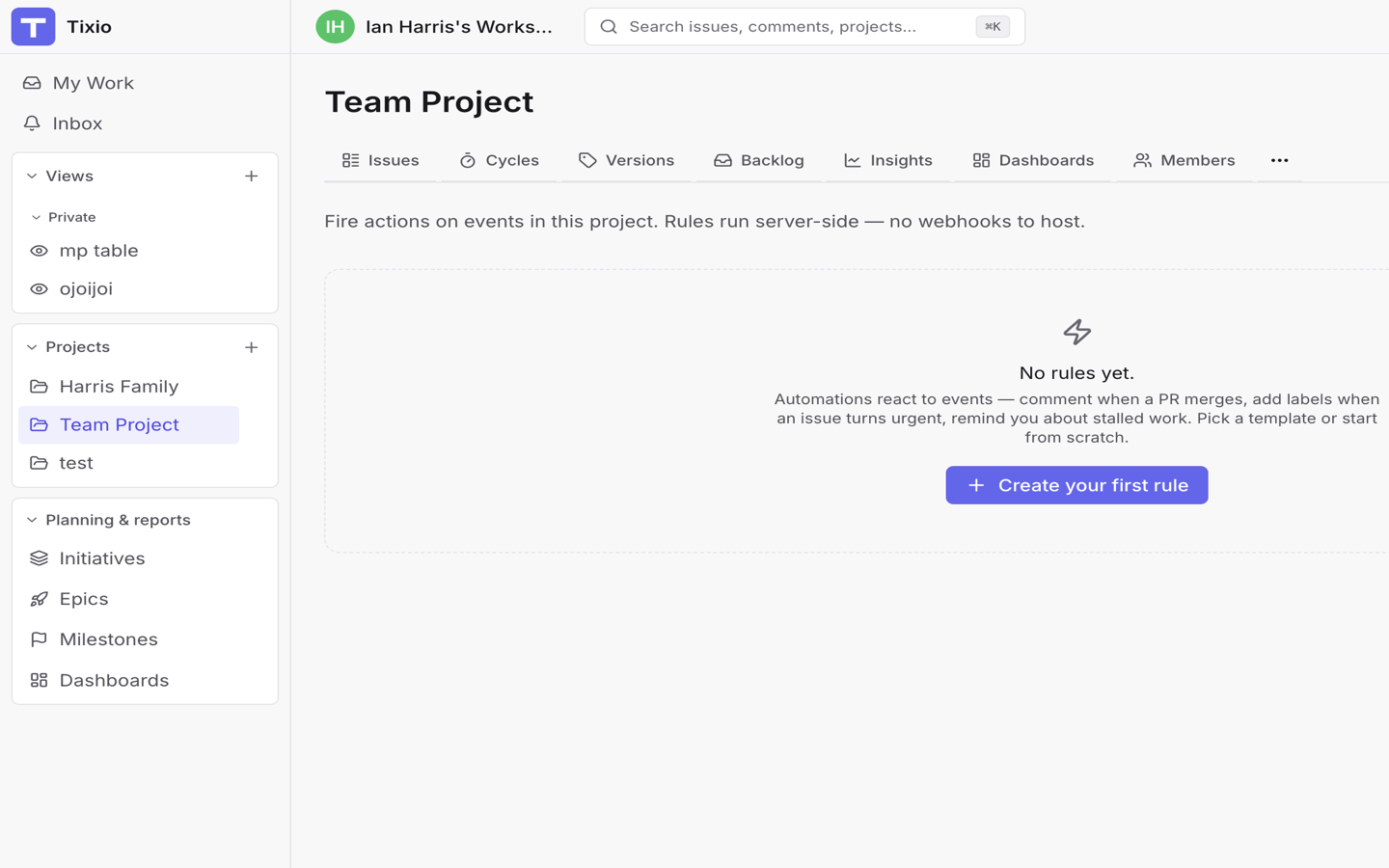
If you do not have permission, Tixio explains that only project admins or workspace owners/admins can manage rules.
2. Start from a template or blank rule
Choose New rule, then either:
- Pick a template under Start with a template, or
- Choose Start blank.
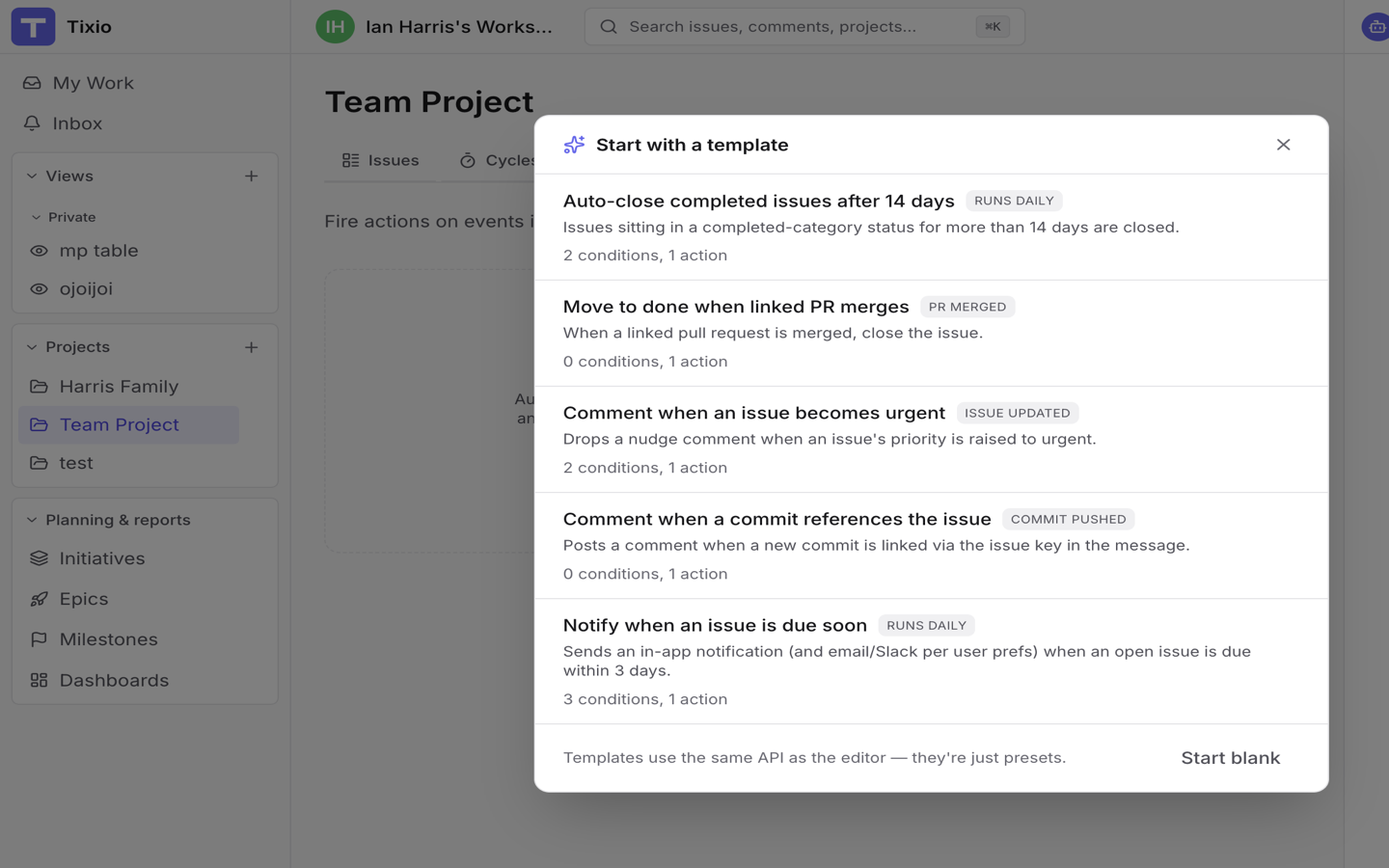
Built-in templates include:
| Template | Typical trigger |
|---|---|
| Auto-close completed issues after 14 days | Runs daily |
| Move to done when linked PR merges | PR merged |
| Comment when an issue becomes urgent | Issue updated |
| Comment when a commit references the issue | Commit pushed |
| Notify when an issue is due soon | Runs daily |
Templates use the same editor as blank rules — they are presets.
3. Configure the rule
In New rule or Edit rule:
- Set a Name and optional Description.
- Choose a Trigger.
- Optionally set Rate limit / min (1–120; default 10).
- Add Conditions when the rule should not fire on every trigger event.
- Add one or more Actions.
- Leave Enabled on when you are ready for the rule to run.
Triggers
| Label | When it fires |
|---|---|
| Issue created | A new issue is created |
| Issue updated | An issue changes |
| Status changed | Status moves |
| PR merged | A linked PR merges |
| Commit pushed | A linked commit is pushed |
| Runs daily | Schedule (daily) |
Conditions
Optional predicates can check status, status category, priority, type, assignee, Assignee in group, labels, changed field, from/to status, days in status, and days until due. Operators include equals, not equals, in, not in, ≥, ≤, and contains.
Actions
| Action | What it does |
|---|---|
| Set field | Set priority, type, status, or assignee |
| Add / Remove label | Change project labels |
| Add comment | Post a comment (supports placeholders) |
| Close issue | Close to a chosen or default completed/cancelled status |
| Notify | Message assignee, watchers, and/or a workspace group |
| Add watchers from group | Add members of a workspace group as watchers |
Notify recipients can be assignee and watchers, assignee only, watchers only, or a group. Delivery still respects each user's notification preferences (in-app, email, Slack).
Placeholders
In comments and notify messages you can use:
{{issue.key}},{{issue.title}}- For commit-pushed rules:
{{commit.sha}},{{commit.short_sha}},{{commit.message}},{{commit.author}},{{commit.url}},{{commit.repo}}
Unknown tokens pass through unchanged.
4. Review the run log
On a rule, choose Runs to open the Run log.
Each entry shows succeeded, skipped, or failed with timestamps. The drawer auto-refreshes so you can watch recent activity.
Deleting a rule also deletes its run history and cannot be undone.
Good first rules
- Comment when a commit references the issue (uses commit placeholders).
- Notify assignee and watchers when an issue is due soon.
- Move to done when a linked PR merges (if you also use Connect GitHub or Connect GitLab).
- Add a label or watchers when priority becomes urgent.
Avoid automating a process the team has not agreed on yet. Start with one narrow rule and read the run log before adding more.
Next
- Manage webhooks when an external system must receive the event instead of Tixio acting in-product.
- Tune notification settings so notify actions reach people on the channels they use.
- Connect GitHub to unlock PR-merged and commit-pushed triggers from real development activity.